1. Install and pick a plan
Install Lusus from the Shopify App Store. The first time you open it, Shopify shows you the plans: you can start on the Free plan and change it anytime on the app’s Plan page. Pro and Plus come with a 14-day free trial, and Shopify bills them on your invoice.
On Home you’ll find a getting-started guide with the same steps as this page. If you already know the app, you can hide it.
2. Create your game
Open Games and click Create game. Lusus creates it with sample prizes so you can see it working right away, then you make it your own:
- Game type: a wheel or a slot machine (the slot machine is on Pro and Plus). Both use the same prizes and chances.
- Texts: the title, the window’s text and the play button. Leave them empty and Lusus uses its own, in each shopper’s language.
- Auto open (Pro and Plus): the window opens by itself after the seconds you choose, or when the shopper is about to leave the page (on computers), at most once every 7 days and never for someone who already played.
- Show the game on my store: turn it off to pause the game at once. Codes already won keep working.
3. Set up the prizes
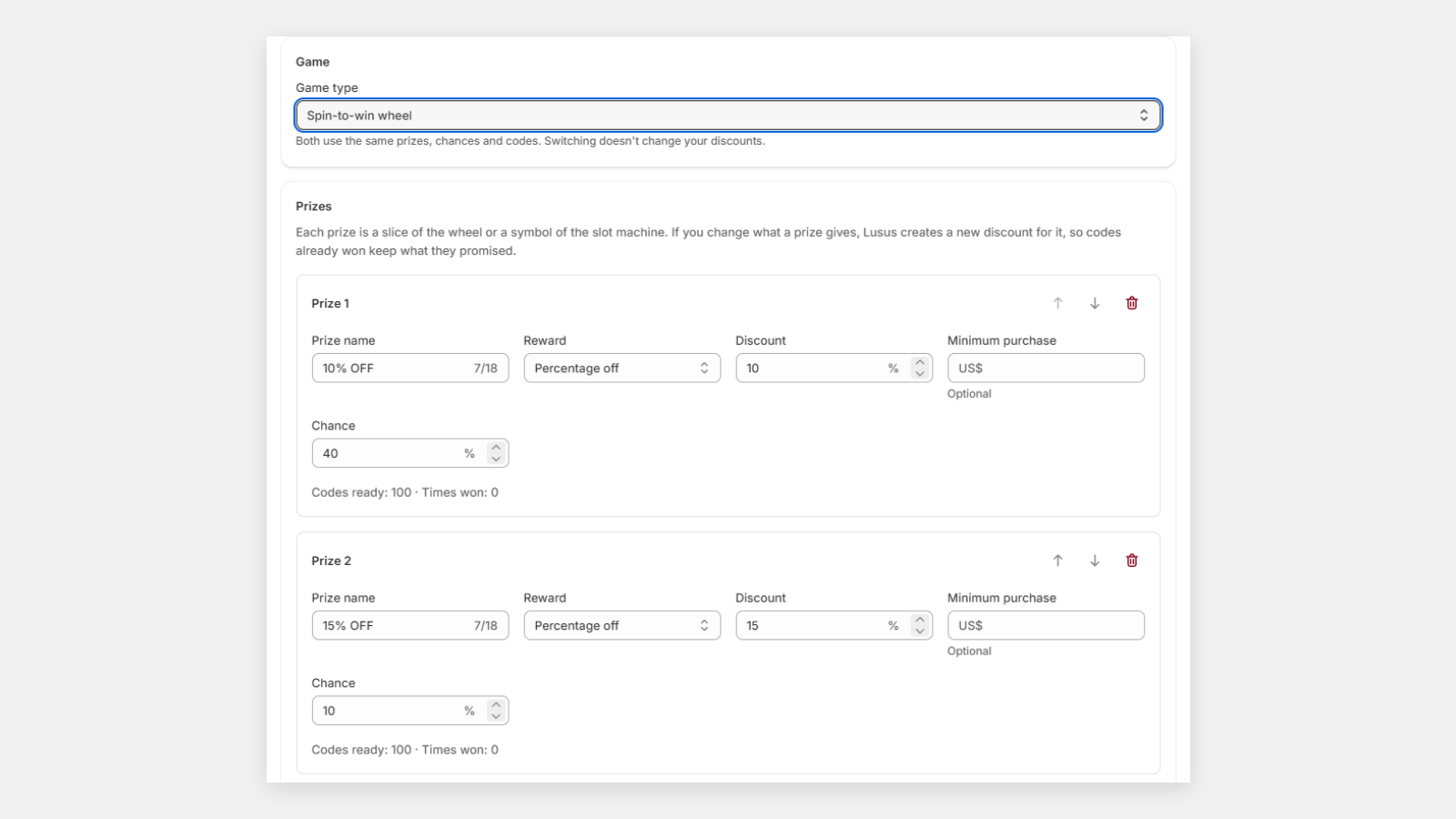
Each prize is a slice of the wheel or a symbol of the slot machine. For each one you choose:
- Prize name: what the shopper sees, like “15% OFF”.
- Reward: a percentage off, an amount off, free shipping or no prize.
- Minimum purchase (optional), so the code only works from a certain amount.
- Chance: how often it comes up. The chances of all prizes must add up to 100%.
When you save, Lusus creates a Shopify discount for each prize, with single-use unique codes ready to hand out. In a few seconds the game shows on your store. If you later change what a prize gives, Lusus creates a new discount for it, so codes already won still give what they promised.
Tip: if your store already gives free shipping on some orders, a free shipping prize takes nothing off those orders. A percentage prize is worth more to those customers.
4. Show it on your store
The game shows through an “app embed” in your theme. You turn it on once:
- In your Shopify admin, go to Online Store → Themes and click Customize. (On Home and Games, the Open theme editor button takes you straight there.)
- In the left sidebar, open App embeds.
- Turn on Prize game and click Save.
That’s also where you change the main color, the floating button’s text and whether it sits at the bottom left or right.
5. What shoppers see
- A floating button on your store opens the game window (or it opens by itself, if you turned that on).
- They enter their email, can agree to get your offers and click the play button.
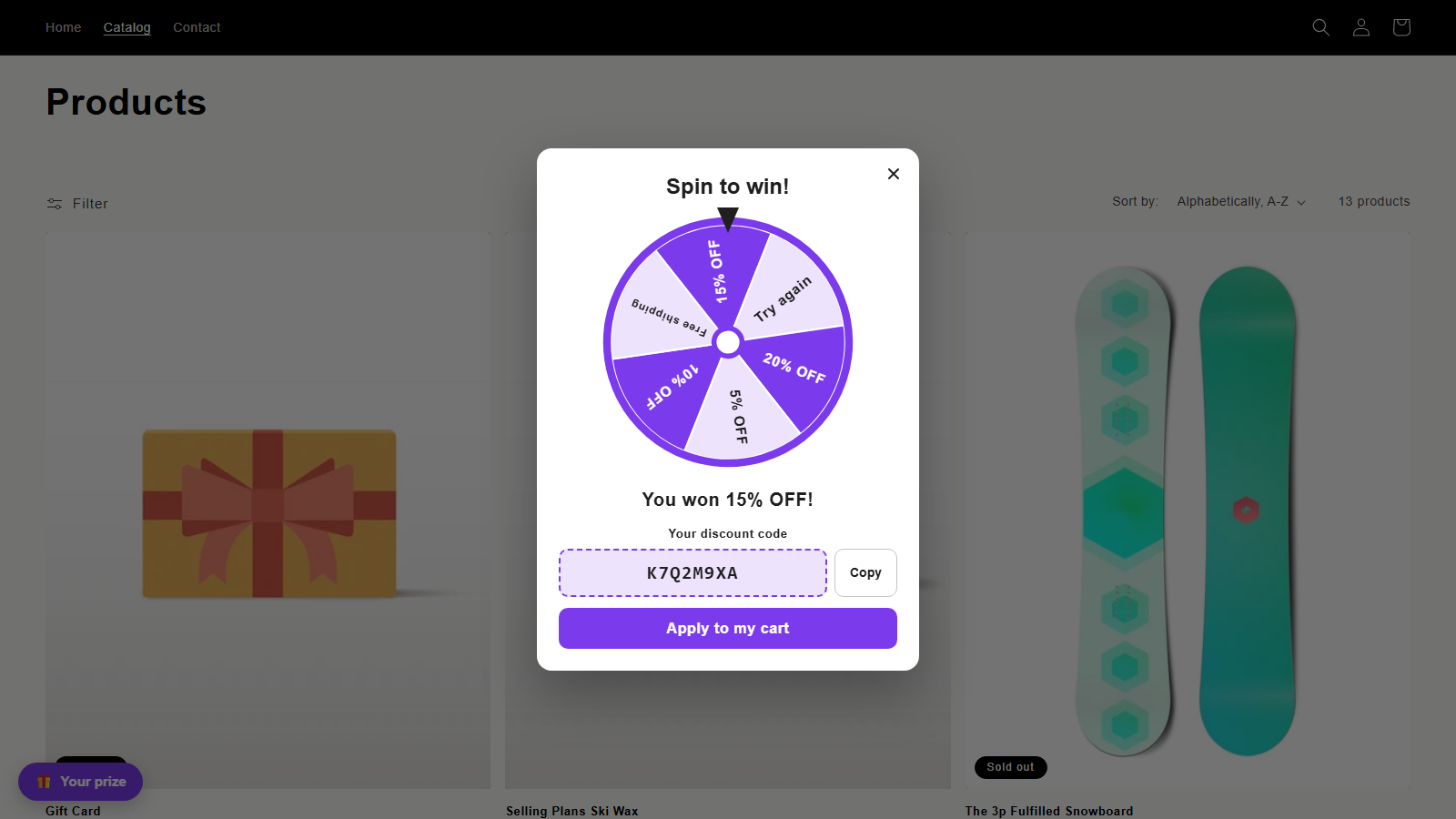
- They spin the wheel (or the slot machine) and see their prize with its code.
- With Apply to my cart, the discount is ready at checkout. They can also copy the code.
Each email plays once. If they come back, they see the prize they already won.
6. Discounts with rules
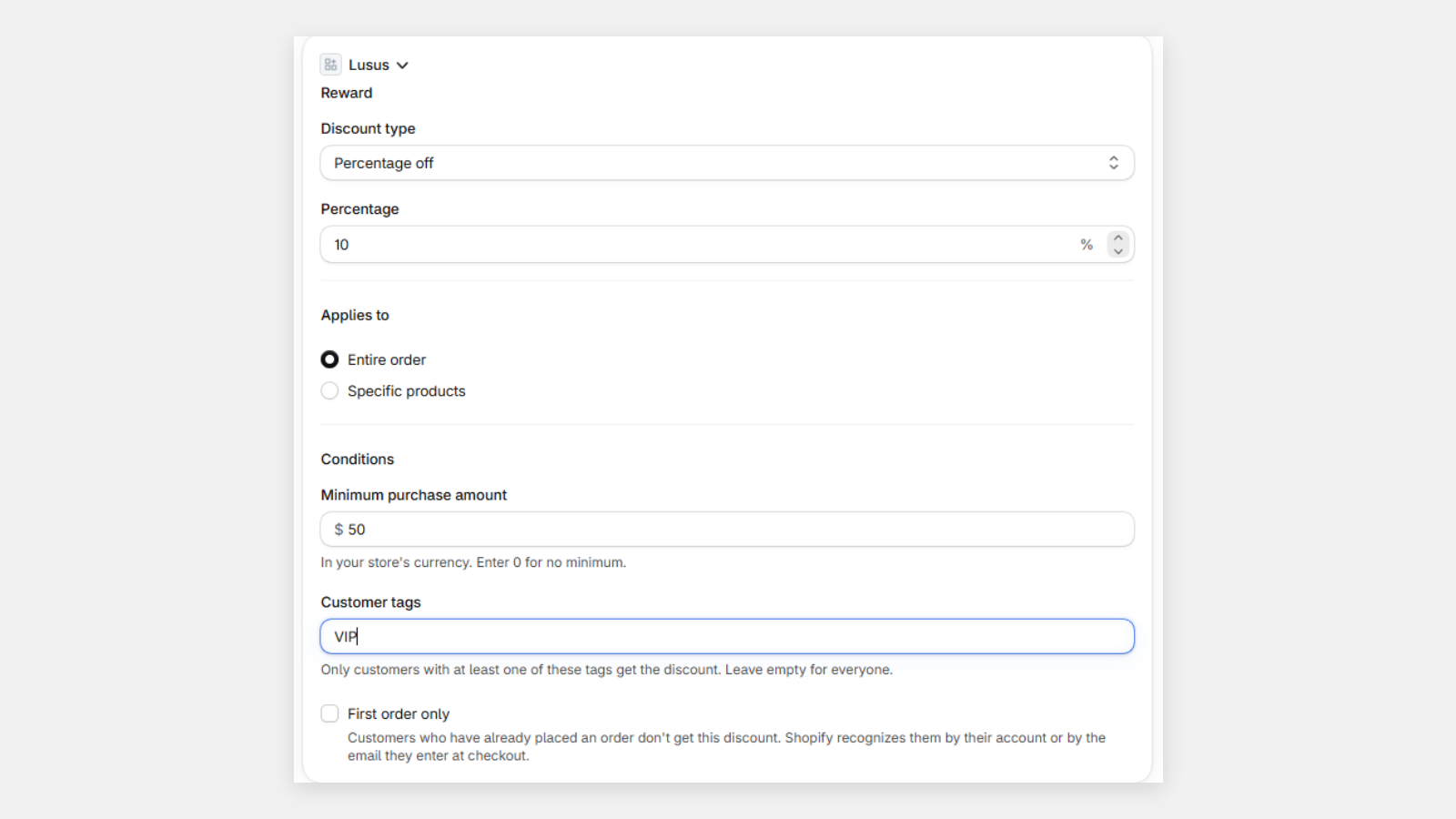
Besides the game, Lusus adds its own discount type to Shopify. Go to Discounts → Create discount → Lusus Discount and on the rules card choose:
- a percentage or a fixed amount, on the whole order or only on products with a certain tag or from a certain collection;
- free shipping;
- a minimum purchase;
- only for customers with certain tags, or only on the first order.
7. Unique codes
On Unique codes you create up to 5,000 single-use codes at once for any discount in your store: for an email, for influencers or to print. To download them, use Export on the discount’s page in Shopify.
8. Customers and privacy
Players become customers in your store, tagged Lusus. If they ticked the offers box, they’re subscribed to your email marketing, ready for your Shopify Email campaigns or another app.
On Privacy you see what Lusus keeps, download the data requests your customers send and delete data when they ask. Promotion and marketing rules change by country: you decide your prizes and texts for where you sell.
9. If something doesn’t show
The game doesn’t show on the store
- Check that Prize game is on under App embeds and that you clicked Save.
- On Games, check that Show the game on my store is on.
- If you just created or changed prizes, wait a few seconds while their codes get ready.
- If you reached your plan’s plays for the month, the game is hidden until the 1st. You’ll see it on Games and on Plan.
The code doesn’t take anything off
- Each code works once.
- If the prize has a minimum purchase, the cart needs to reach it.
- A free shipping code takes nothing off if that order’s shipping was already free.
10. Need help?
Write to us and we’ll help you get your game ready.

Lusus · support@lusus.app